Assign Employee Category and Time Slot for Transferred staff in E-Track
Introduction:
The purpose of this document is to promulgate the importance of new attendance system. Amrita E-Track is an indigenous application designed to help the organization to run a digital attendance system.
Here we will look how do HR admin assign Employee Category and Time Slot for Transferred staff in E-Track.
Getting Started:
To access Amrita Attendance Management System
Open an internet browser (Recommended to use Google Chrome)
Type https://my.amrita.edu/ and click enter
Login with your amrita email id and password.
Click AMRITA E-TRACK
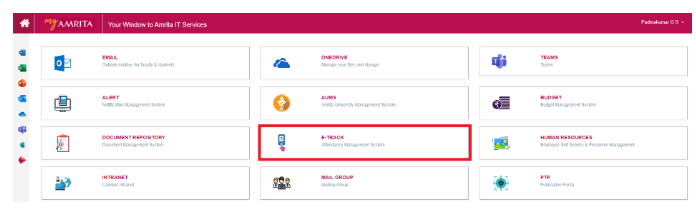
Go to HR Administration.
Transfer Pending under Staff summary in dashboard displays the number of Staffs need to be assigned with appropriate Employee category and Time slot of this School.
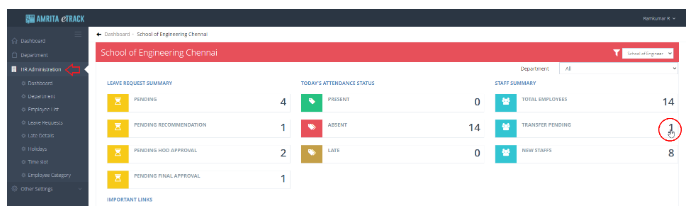
Click on the Count to open the pending employee list.
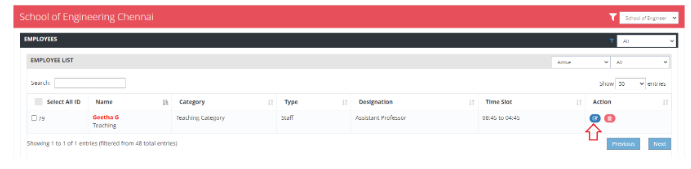
The employee name will be in red color for those who are not assigned with an employee category and time slot of the current School. Click on the Edit button to open the window to edit Employee details.
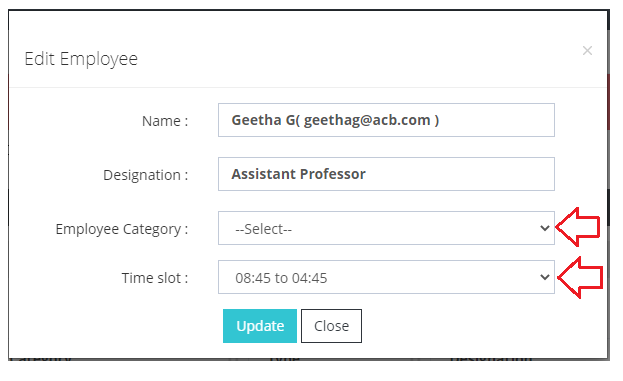
Select the Employee category and Time Slot from drop-down.
Click Update button to save the changes.